
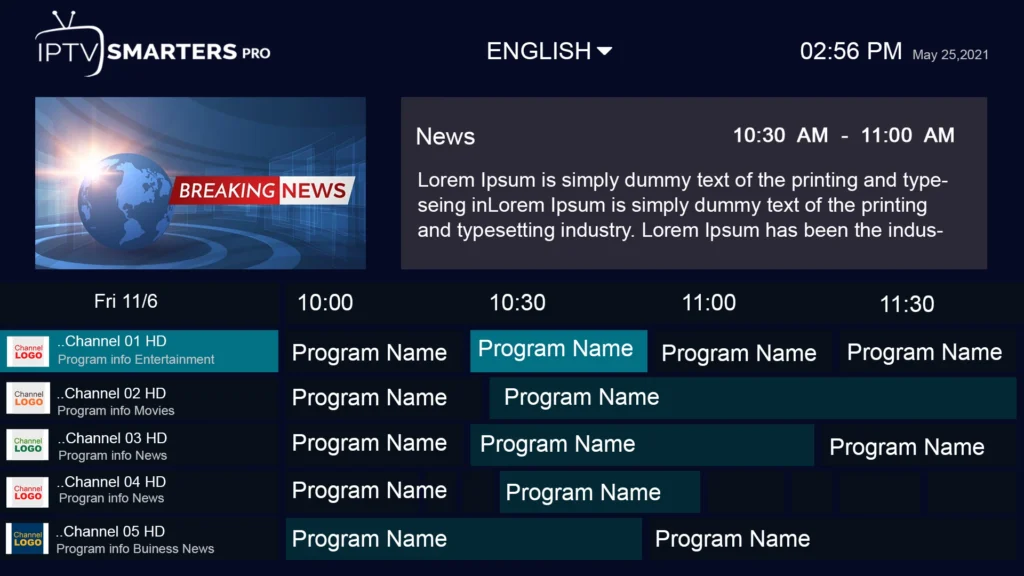
A device clock and a programme guide feed can use different time references. A consistent shift across the guide suggests a time-setting issue.
What this topic means
A device clock and a programme guide feed can use different time references. A consistent shift across the guide suggests a time-setting issue.
Adjusting the guide does not change the official start time of an event in its home time zone.
A useful first check
Compare the local clock, guide offset if available and one programme that is visibly playing now.
Keep a short baseline: device model, operating system, installed player and version, account format, connection type and the exact source being tested. The purpose is to understand one condition at a time rather than collecting unrelated settings.
Compare the result without losing the baseline
For viewing features, begin with the comparison described above. Preserve the current account and record whether the action changes the symptom, leaves it unchanged or causes a new problem. Revert a setting that does not help before trying another.
Adjusting the guide does not change the official start time of an event in its home time zone. If the issued account format or current availability is unclear, ask support for that information before changing an installation. A correct diagnosis depends on the source and player, not just the title of a website guide.
Separate the service, player and device
The service account sets the term and connection allowance. The player organises and decodes the available media. The device and network determine which supported playback route you can use. Compare the local clock, guide offset if available and one programme that is visibly playing now.
A player update, app licence, network change or device replacement does not by itself extend a service subscription. Check the appropriate account status before paying for another item or repeating a panel action.
Keep a useful record and support route
Write down the exact action and result, any visible error, and the approximate time with the time zone. Include a source name, title or episode when the symptom is isolated. Avoid posting complete playlist URLs, passwords or a full customer list.
The existing support routes are WhatsApp +44 7532 814802 and support@8kiptv.io. A saved website order reference can identify a request, but it is not proof of payment or activation. Keep the relevant confirmation with your private account record.
What to confirm before a longer commitment
Compare the local clock, guide offset if available and one programme that is visibly playing now.
Check the full term total and the connection allowance alongside your real device needs. The published subscription totals are $9.59, $23.99, $39.99 and $54.99 for one, three, six and twelve months. For reseller decisions, check the published customer-month credit model and the actual panel debit before applying a package.
Comparing a separate service? Review MegaOTT directly for its current device requirements, connection allowance and account terms. Keep that information separate from an 8K PRO account.
Continue with the relevant guide
Useful next steps
Guide
Device setup directory
Check the exact platform before installing.
Read the guideGuide
Player names and codes
Find the provider-listed app entry.
Read the guideGuide
Support by symptom
Collect a focused report before changing everything.
Read the guide