
Choose Team 8K from the VIP+ Add Playlist dropdown. Its position above the Cloud variants does not assign your account to it automatically.
Where 8K PRO appears
Choose 8K PRO from the VIP+ Add Playlist dropdown. Its position above the Cloud variants does not assign your account to it automatically.
These choices are visible in the player interface previews. This guide explains the visible account route without assigning undocumented features or download codes to a menu label.
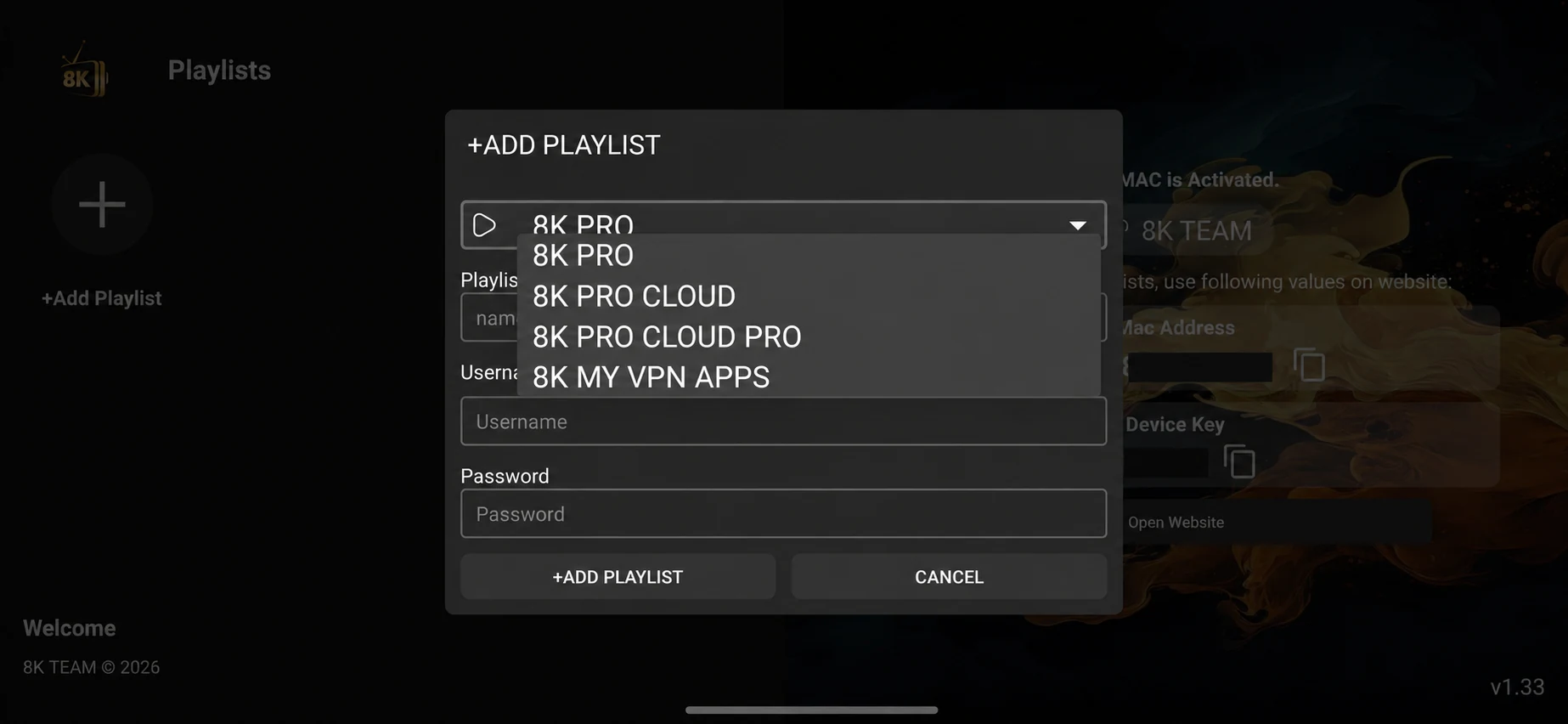
Match the account before saving
Choose 8K PRO from the VIP+ Add Playlist dropdown. Its position above the Cloud variants does not assign your account to it automatically.
Open the installed player and record the exact application name. Use the account option named in your support message, then enter the issued username and password into separate fields. A playlist name is a local label and should not replace the service username.
If support has supplied a different route, keep that instruction with its date. Do not move a working account into another Cloud, KSA or VPN-labelled selection solely because it looks similar.
| Visible route | 8K PRO |
|---|---|
| Installed player | 8K Player Vip Plus |
| Download source | Use the parent player download, not a made-up code for this route. |
| Trial | Install the supported player, then request a one-day trial on WhatsApp. |
| Evidence to retain | Player version, selected route, device, account reference and first-playback result. |
When activation or playback fails
Check the selected route and the issued account format first. Read any exact login message without sending the complete password or private playlist URL. A successful login followed by one unplayable channel needs a source-specific report rather than another account import.
Keep the player, network and source stable while comparing a setting. If the route itself may be wrong, ask support to confirm it before adding another playlist. Preserve the original working entry until the replacement has been tested.